
Table of Contents
- Transforming Your Firestick Into A One Click Retro Gaming Hub
- Step By Step Setup Using Downloader And Developer Options
- Optimizing Remote Only Controls For Classic Arcade And Console Games
- Recommended Retro Titles And Performance Tips For Smooth Gameplay
- Q&A
- Key Takeaways
Transforming Your Firestick Into A One Click Retro Gaming Hub
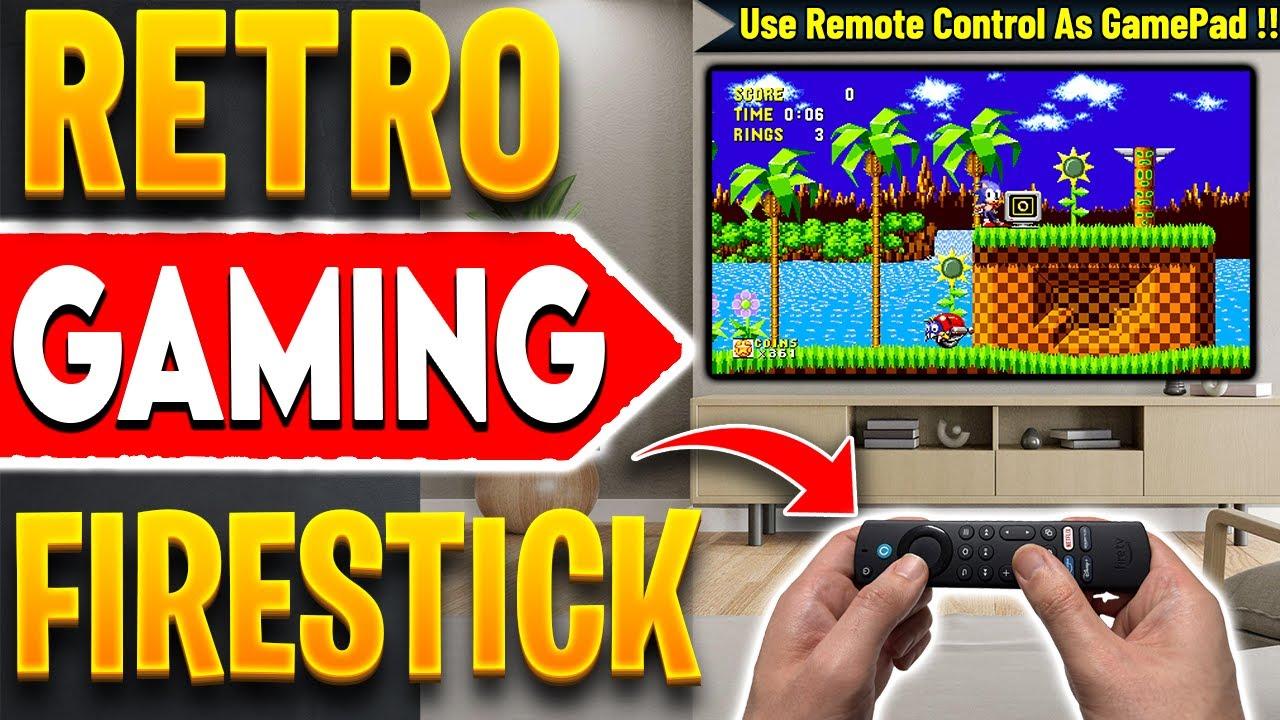
Convert your Firestick into a retro gaming powerhouse with just a few simple steps-no manual emulator settings or ROM configurations required. Once you've installed the necessary tools, a single click transforms your standard remote into a gaming controller, letting you jump straight into classics like Super Mario or arcade favorites from the 80s and 90s. This setup is designed for ease: just install the app, grant permissions, and you're ready to start playing in moments. The best part? It's all free and compatible across various Amazon Fire devices, making retro gaming accessible to everyone, anytime.
To streamline your experience, I recommend navigating to a dedicated tutorial page that walks you through the process step by step, including installing the appropriate downloader app and enabling developer options. Here's a quick overview of the essentials:
- Download and install the downloader app from the Amazon App Store
- Enable developer options and grant permission for unknown apps
- Access a curated retro game repository via a simple website link or shortcode
| Step | Action |
|---|---|
| 1 | Install downloader app from Amazon Store |
| 2 | Enable developer options & allow unknown apps |
| 3 | Visit retro game website & load ROMs directly |
Step By Step Setup Using Downloader And Developer Options
Begin by enabling Developer Options: Navigate to your device settings, select My Fire TV, then scroll down to Developer Options. If you don't see it, tap on About and click the device name (or Serial Number) seven times to unlock this menu. Once activated, turn on Install Unknown Apps for the Downloader app, giving it permission to install third-party applications without restrictions.
Next, set up Downloader for seamless access: Launch the app, go to its homepage, and in the URL bar, input the direct link to your preferred retro gaming repository, such as https://techto.com or use the short code 53402. Confirm your connection and once loaded, navigate to the hamburger menu, select Tutorials, then locate Easy Retro Gaming. This will lead you to a curated collection of emulators, ROMs, and easy-to-follow guides-ready to turn your Firestick into a vintage arcade machine with just a few clicks.
Optimizing Remote Only Controls For Classic Arcade And Console Games
To effectively turn your remote control into a reliable arcade and console game controller, it's essential to allocate specific buttons for gaming functions. *Map directional inputs* to your D-pad and assign *action buttons* for jumps, shots, or other game-specific actions. Using a simple, user-friendly layout, you can create a seamless experience that mimics your favorite classic controllers. Stick to intuitive button placements-for example, setting the arrow keys for movement and the ABXY buttons for primary actions-so you can jump right into the gameplay without fumbling around.
Sample Button Assignments
| Command | Mapped Button |
|---|---|
| Move Left | Arrow Left |
| Jump | Button A |
| Fire | Button B |
| Pause | Select |
Recommended Retro Titles And Performance Tips For Smooth Gameplay
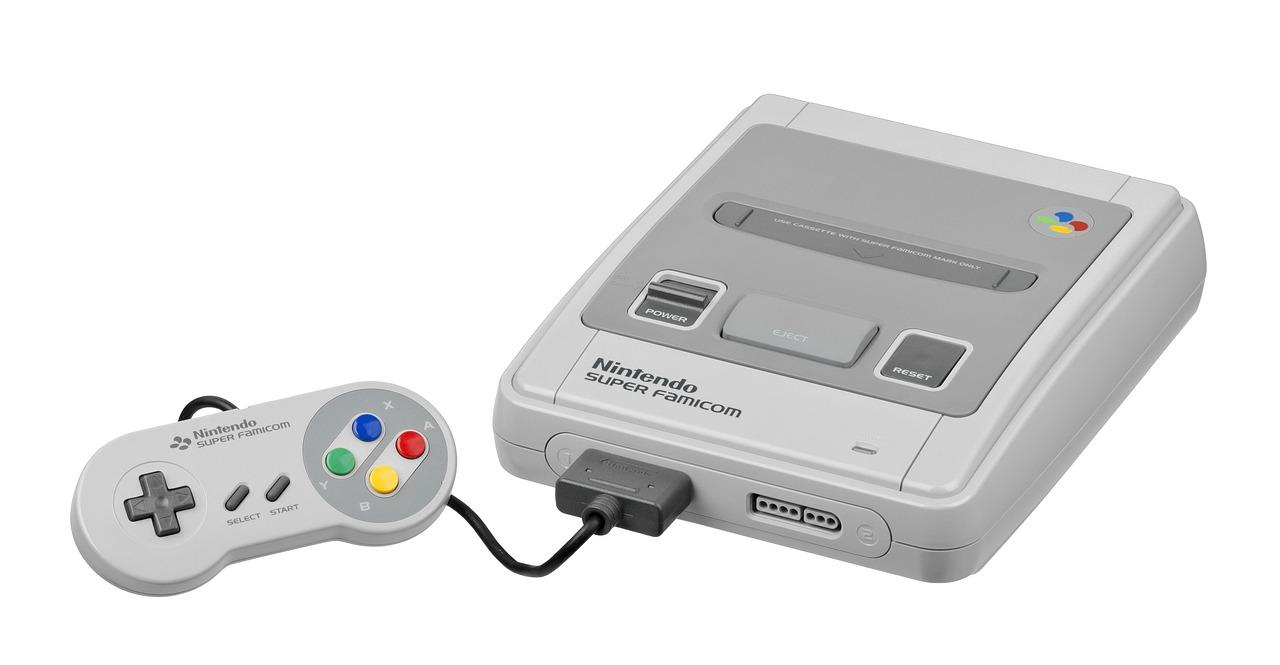
Trending Retro Titles: Dive into classics like Super Mario Bros., Street Fighter II, Megaman, and Contra. These games have withstood the test of time and are perfect for quick, nostalgic hits. For a seamless experience, you might want to explore optimized versions or ports that run smoothly on lightweight hardware like the Firestick. The key is focusing on titles with less demanding graphics to ensure you enjoy the game rather than dealing with lag or glitches.
Performance Enhancement Tips: To keep your retro gaming experience smooth,
- Update your device firmware to ensure compatibility with the latest emulators and apps.
- Limit background apps to free up resources and prevent stuttering during gameplay.
- Adjust emulator settings by lowering resolution or disabling high-end graphical effects for better performance.
| Game Title | Difficulty | Performance Tips |
|---|---|---|
| Super Mario Bros. | Easy | Use latest emulator version for smoother scrolling |
| Street Fighter II | Moderate | Disable sound effects if lag occurs |
| Megaman | Hard | Lower frame rate to 30 FPS |
Q&A
Q&A: Transforming Your Firestick into a Retro Gaming Console - Insights from the YouTube Video
Q1: What is the main idea behind turning a Firestick into a retro gaming console?
A1: The concept is to easily play classic retro games on your Amazon Firestick without the hassle of configuring complex emulators or downloading ROMs. Instead, you can use your standard remote control to play these games instantly, making the process straightforward and accessible.
Q2: Do I need special controllers or complicated setups to start playing retro games on my Firestick?
A2: No, the method showcased allows you to use your regular remote control as the game controller, eliminating the need for additional gamepads or manual emulator configurations.
Q3: Which Firestick model was demonstrated in the video, and can the process be used on other devices?
A3: The demonstration was performed on the third-generation Fire TV (F TVQ), but the process is compatible with any other Amazon Firestick or even other Android TV devices.
Q4: What is the first step to start transforming my Firestick into a gaming console?
A4: The first step is installing the "Downloader" app from the Amazon Appstore, which is used to sideload other applications and files necessary for retro gaming.
Q5: Are there any settings I need to configure before installing new applications on my Firestick?
A5: Yes, you need to enable "Unknown Apps" or "Install Unknown Apps" for the Downloader app by navigating to Developer Options in the device settings, allowing the installation of apps outside the official app store.
Q6: How does the process connect to the gaming resources?
A6: Once Downloader is set up, you connect to a specific website (like techto.com or a short code like 53402), which hosts the files and links needed to load the retro gaming interface onto your Firestick.
Q7: Is any prior gaming experience or technical knowledge required?
A7: No, the process is designed to be user-friendly. It allows even novice users to set up and start playing retro games with minimal effort, primarily using the remote control.
Q8: Can I customize the games or add new ones?
A8: The tutorial suggests selecting an easy retro gaming interface, which typically offers a preloaded library of classics. Adding new games may require further steps, but the focus is on a quick, out-of-the-box experience.
Q9: How can I find out what retro games I might enjoy the most?
A9: The creator of the tutorial invites viewers to comment with their favorite arcade or retro games from the 80s and 90s, such as Super Mario or classic fighters, to share and discuss nostalgic favorites.
Q10: Why should I subscribe to the channel?
A10: Subscribing and hitting the notification bell keep you updated on the latest tech tutorials, tips for Firestick and Android devices, and new methods for enhancing your entertainment setup.
Feel free to explore this creative way of repurposing your Firestick into a nostalgic gaming device-no complicated emulation or extra controllers needed!